Your first 15 minutes
This is a walkthrough, not a reference. Do it once with the example brand (USCCA) open and the whole tool will click into place. It assumes you have read the mental model; if you have not, five minutes there will save you fifteen here.
1. Create an account, then land on Today
Section titled “1. Create an account, then land on Today”Signup is self-serve at app.answerworthy.ai/signup. Two ways in: enter your email and we send a magic link (clicking it both creates the account and verifies your address, so there is no password to set), or choose Continue with Google. Disposable-email domains are blocked, and per-IP and per-email rate limits keep signups honest; the confirmation email arrives via Amazon SES. A brand-new account drops you straight into the “create your first brand” flow.
Once you are in, you land on Today, the workspace home. Think of it as the “what needs me?” screen: red alerts first, then setup steps you have not finished, then brands you can open.
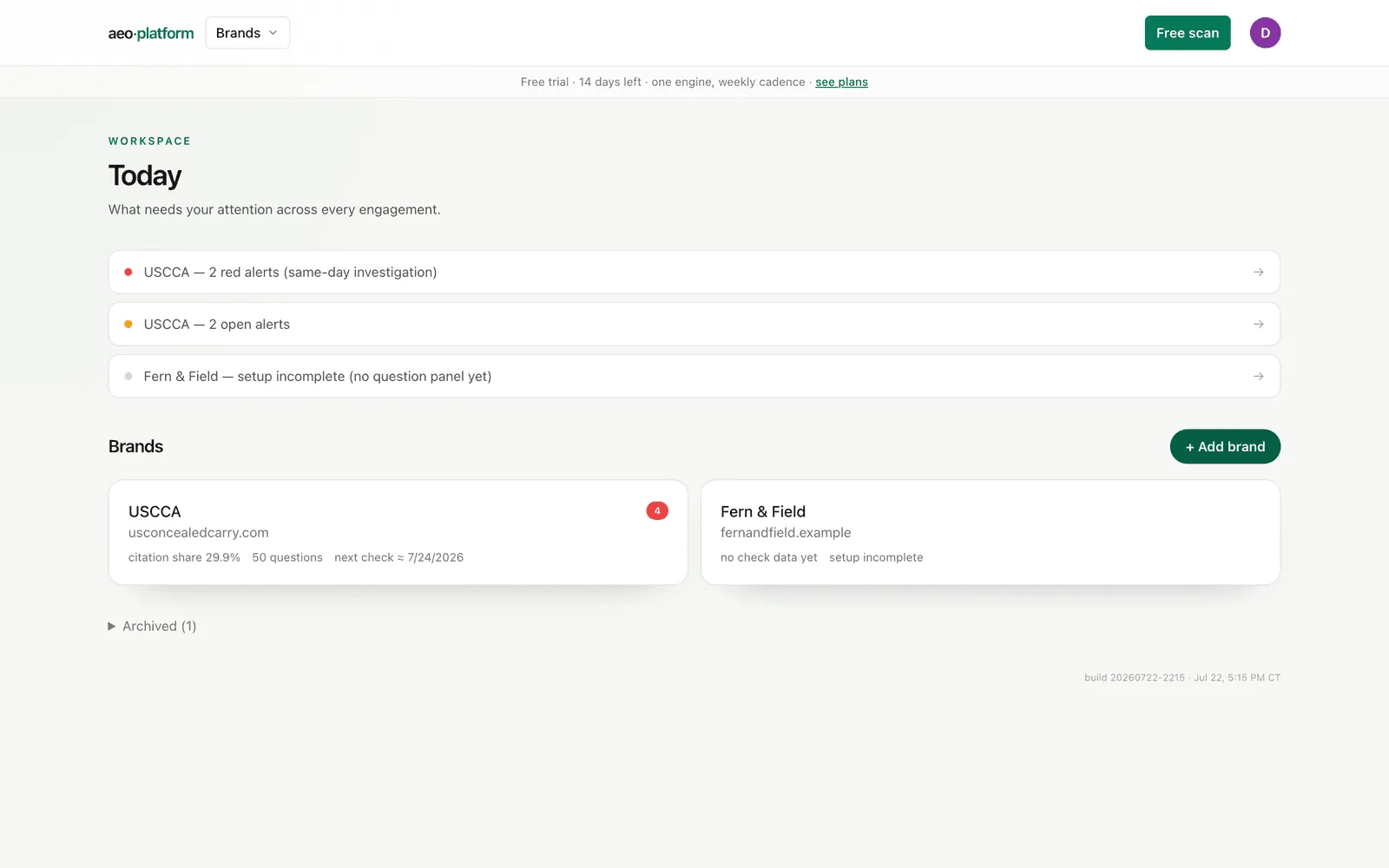
Each brand shows its headline numbers right on the card: citation share, how many questions are tracked, and when the next check runs. Click the USCCA card to open it.
2. Overview: your next move
Section titled “2. Overview: your next move”Opening a brand lands you on Overview, its home. It starts with your current Citation share, the amount of open work, and a clear Next best move. Before the first baseline, it routes you through the shortest setup path. After setup, it shows what changed and where to look next.
For USCCA the score card shows a gate-blocked state. That is expected and correct: USCCA’s site sits behind a Cloudflare challenge, so the tool honestly reports the gate instead of faking a score. (See gates in the mental model.)
Notice the left sidebar. It has six jobs you will use constantly:
- Overview — start with what matters now
- Measure — manage questions and measurements
- Readiness — check whether AI can reach and read the site, and re-scan after fixes
- Analytics — inspect Scorecard, Answers, and Alerts
- Actions — work from the prioritized recommendations
- Reports — create a shareable narrative
3. Analytics: your visibility, in plain English
Section titled “3. Analytics: your visibility, in plain English”Click Analytics, then open Scorecard. This is the deep-read screen. It opens with a plain-English sentence like “USCCA is cited in 30.2% of tracked AI answers, strongest on Gemini, weakest on Perplexity,” then four big KPIs.
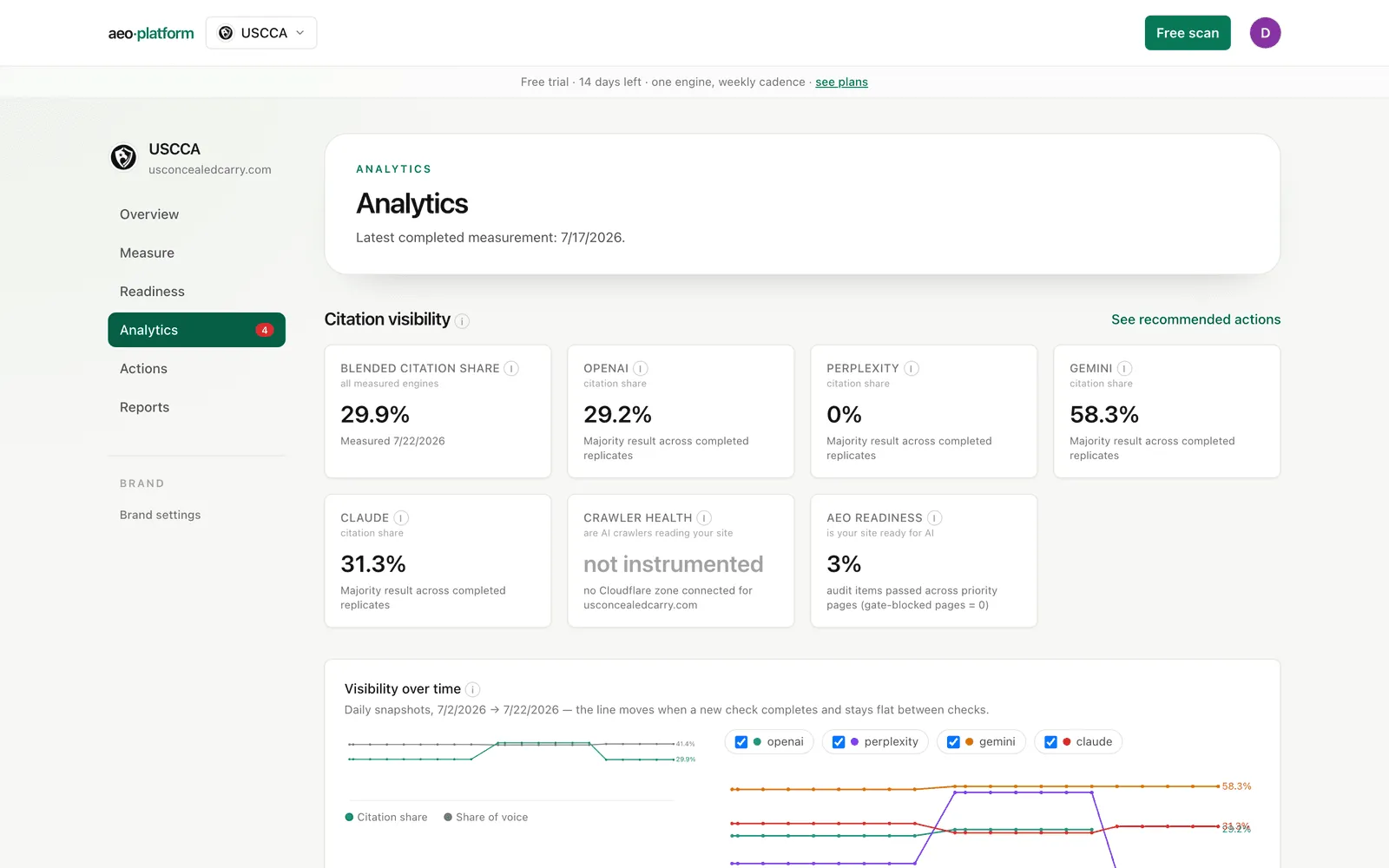
Read it top to bottom:
- The headline tells you where you stand and where you are strongest and weakest, in one sentence.
- The four KPIs — citation share, crawler health, AEO readiness, and AI-influenced revenue. Two of these will say “not instrumented” or “not yet instrumented” for USCCA. That is the honest-empty-state promise, not a bug.
- The mention/citation diagnostic — a small 2×2 that routes you to the right fix. “Mentioned but not cited” points at extractability; “neither” points at authority.
- Keep scrolling for the evidence: the prompt-by-engine heatmap, rankings against competitors, the decision-journey funnel, and more. Every widget has a small ⓘ icon; hover it for a plain-English “why this matters” note that cites the method.
Do not try to absorb every card today. The Scorecard feature page explains each one when you need it.
4. See the actual answers
Section titled “4. See the actual answers”Open Answers from Analytics. This is the raw material behind every number: every AI answer the tool collected, with badges for whether you were mentioned and cited. Turn on Highlight to paint your brand’s mentions into the answer text, and expand any row to read the full answer plus the sources that engine actually cited.
This is worth doing once, because it makes “citation share” concrete. You are not looking at a black-box score; you are looking at the exact sentences the engines wrote.
5. Know what to do next
Section titled “5. Know what to do next”Click Actions to open the Action plan. Every item is sorted by impact and effort, tagged OBSERVED or INFERRED, and labeled with where it came from (your site, the AI answers, crawlers, or search data). Each has a fix recipe, and many have a copy-as-prompt button so you can hand the fix straight to an AI writing assistant.
That is the loop: Overview tells you what matters now, Analytics shows you the evidence, and Actions tells you what to change. Studio remains available when you need help drafting the implementation.
Where to go from here
Section titled “Where to go from here”- Understand any screen in depth: the Features section has a page for each.
- Add your own brand: + Add brand on Today starts the guided setup — two fields, then the tool researches the rest while you watch.
- Turn on fact-checking of the AI answers: approve your fact sheet in Brand profile.
- Confused by a word: the Glossary defines every term once.