Teams
Teams manages who can see what. The key idea: every brand is its own workspace, and the workspace is the sharing boundary. Inviting someone to one brand’s workspace never exposes your other brands — this isolation is enforced in the database itself (row-level security), not just hidden in the interface, and it is verified with automated cross-tenant checks.
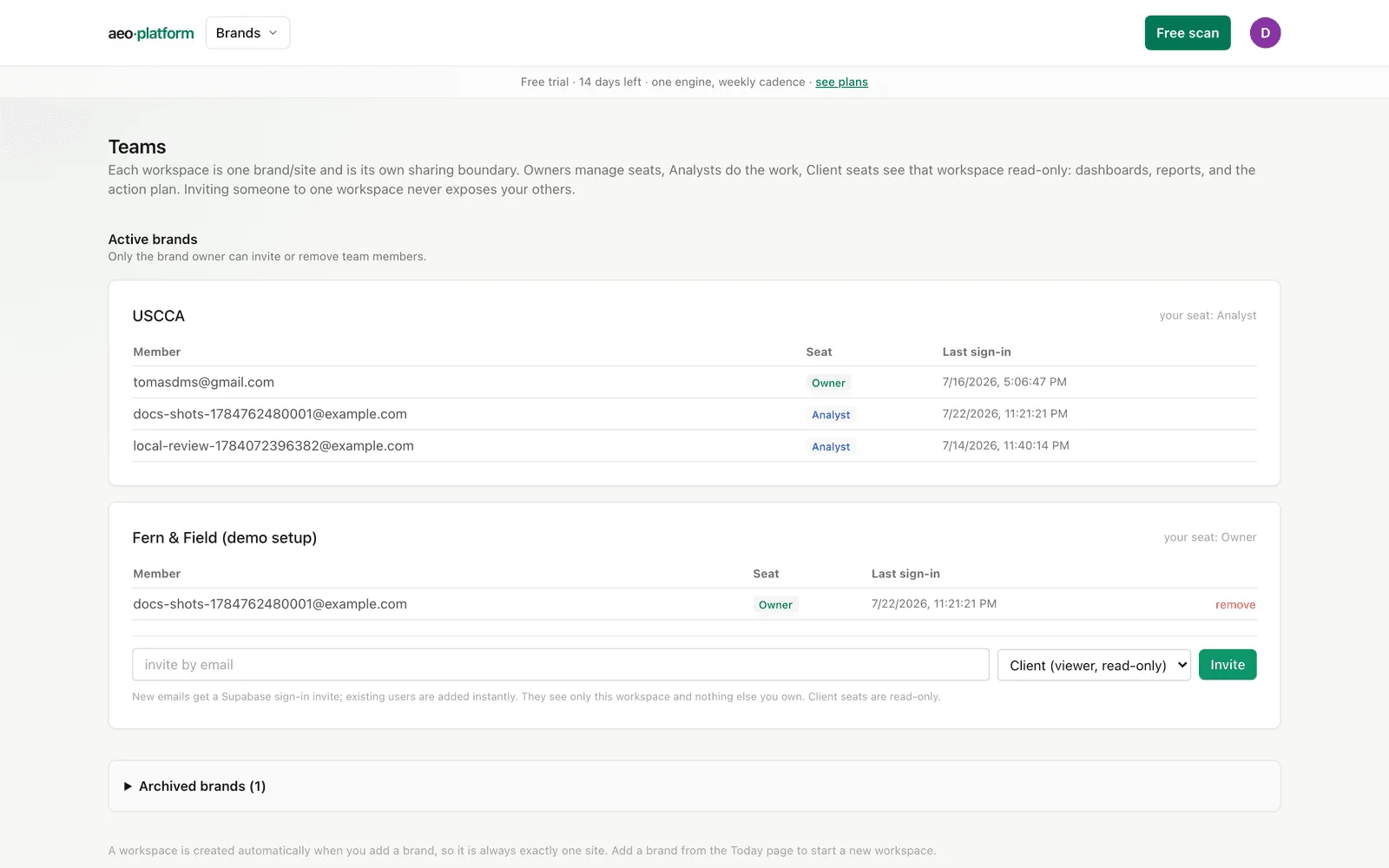
The page lists each workspace with its members, their seat, and last sign-in:
- Owner — full control. There is exactly one owner per workspace (its creator); owner seats cannot be handed out by invite.
- Analyst — does the work: runs checks, edits questions, generates content.
- Client (viewer) — read-only. Sees the dashboards, reports, and action plan for that one workspace, and cannot run checks, change anything, or create brands. If a viewer tries a write action, they get a clear “read-only seat” message — nothing fails silently.
Inviting someone
Section titled “Inviting someone”Each active workspace card has an invite form (owners only). Enter an email and pick a seat:
- Existing users are added instantly.
- New emails get a sign-in invitation by email; their seat is ready when they first log in.
They will see only that workspace — nothing else you own. This is what makes client sharing safe: give a client a viewer seat on their own brand and your other clients stay invisible.
Archived brands
Section titled “Archived brands”Archived brands are kept in a collapsed Archived brands section so their former team record remains available without crowding active work. Their seats are read-only: nobody can invite or remove a member until an owner unarchives the brand. Brand lifecycle actions, including archive, unarchive, and permanent deletion, are owner-only.
Workspaces are automatic
Section titled “Workspaces are automatic”A workspace is created automatically when you add a brand (from Today), so there is no separate “create workspace” step and a workspace is always exactly one brand/site. The last owner of a workspace cannot remove themselves, so a workspace always has an owner.