Account settings
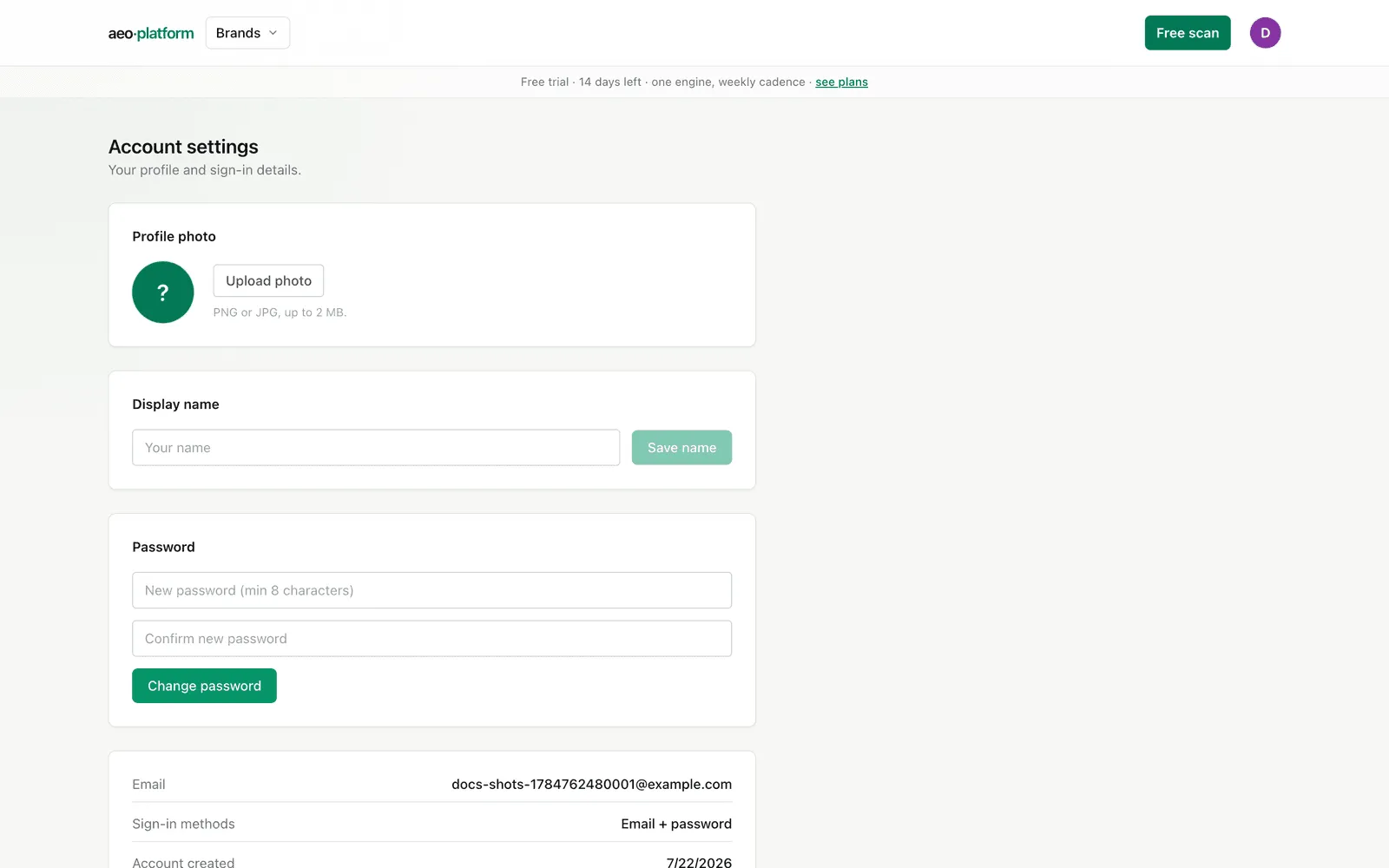
Account settings is your personal account, separate from any brand or workspace. Open it from the avatar menu in the top-right corner. That menu keeps Agency settings separate for agency-wide work. Account settings has three editable cards — profile photo, display name, password — plus a read-only card with your sign-in details.
Profile photo
Section titled “Profile photo”Your avatar starts as a colored circle with the first letter of your name. Upload photo accepts a PNG or JPG up to 2 MB; once it uploads, the round avatar in the top-right switches from the initial to your photo everywhere. Remove takes the photo away and falls back to the initial.
If you pick a file that is not an image, or one over 2 MB, the card tells you so and nothing changes.
Display name
Section titled “Display name”Type a new name and Save name. The change shows up immediately in the avatar-menu header, and it is the name your initial is drawn from when you have no photo.
Password
Section titled “Password”Enter a new password twice and Change password. It must be at least 8 characters, and the two fields must match — you get a plain error message if they don’t.
If you only sign in with Google, there is no password on this account to change, and the card says so honestly instead of showing a form that would fail: manage your password in your Google account.
Your sign-in details
Section titled “Your sign-in details”Below the editable cards, a read-only card shows:
- Email — the address you sign in with.
- Sign-in methods — email + password, Google, or both.
- Account created — the date you joined.
What is not here
Section titled “What is not here”Workspaces, seats, and client access are team-level settings, not personal ones — they live in Teams. Brand configuration lives in each brand’s own setup screens.
Related
Section titled “Related”- Workspaces, seats, and client access: Teams.
- Where a brand’s own settings live: Brand profile.